Free Posterize converter
Simplify continuous tones into fewer color levels for graphic, poster-like artwork.
Drop an image or video here
Images up to 50 MiB · safe SVG up to 256 KiB · videos up to 512 MiB
Processed on your device. No account, no upload.
How to convert your file
- Choose an image or video, or drag the file into the preview. Your file stays on your device.
- Adjust the effect and compare it with the original. All effect controls are available in the parameter panel.
- Choose your output settings and download the result. Processing and encoding happen in your browser.
How the Posterize effect works
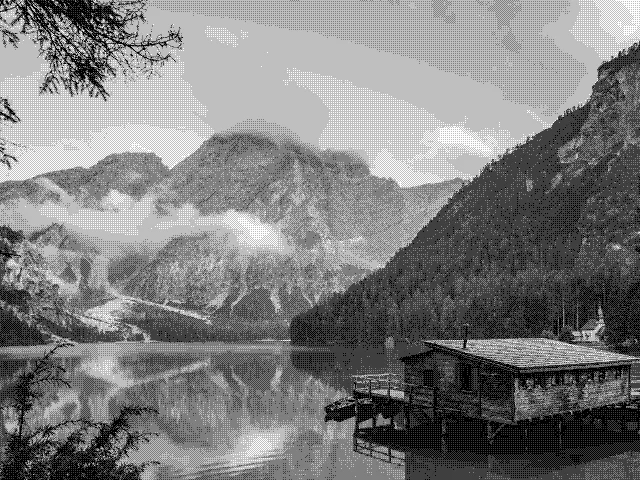
Posterization reduces the number of tonal levels used to represent an image. Lower levels create broad, clearly separated color regions; higher values retain more subtle transitions. Melt’s Amount control blends the quantized image with the source. This makes the tool useful for graphic studies, social assets and footage that benefits from a flatter, more illustrative look.
- Image
- Adjust the treatment on a still image and download a PNG, JPEG or WebP. The output keeps the source aspect ratio and can be up to 1920 pixels on its longest edge.
- Video
- Apply the treatment to a selected clip and download MP4 or WebM, depending on your browser. Set the starting point and a duration of up to 60 seconds; the original audio can be kept.
A few ways to shape the result
- Begin with six levels, then lower the value for a stronger graphic look.
- Increase the level count when skin tones or gradients become too harsh.
- Use Amount to blend the treatment instead of changing the original file.
Good to know
Does posterization use the same process as dithering?
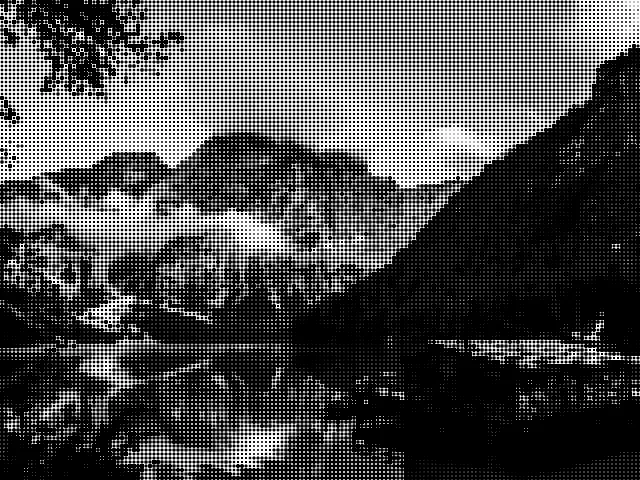
No. Posterization quantizes colors into a smaller number of levels. Dithering distributes a limited palette into patterns to suggest intermediate tones. They produce different textures; try the related Dither converter when you want a visible pixel pattern.
Is my file sent to a server?
No. The file is read locally and processed with the Melt renderer in your browser. The page can download application code and the optional example image, but it does not upload your selected media.
What can I download?
Choose PNG for a lossless image, JPEG for a compact photograph, or WebP when supported. The longest output edge is capped at 1920 pixels and smaller sources are not enlarged. The ASCII treatment is exported visually, not as a text file. Choose automatic encoding, MP4 or WebM. Supported codecs depend on your browser. The selected clip can be up to 60 seconds, at 30 fps, with up to 1920 pixels on its longest edge. Audio is included when enabled and present in the source.
Can I change the look after I choose a file?
Yes. The effect stays adjustable while you preview. Change its parameters, compare the source and result, and download again. The source file is not modified. Your selection is released when you leave the tool.